Technology plays an important role in how students learn, communicate, and access school resources. The Charles County Public Schools (CCPS) Office of Technology provides safe, reliable and accessible tools to support students at school and at home.
Use this guide to help your family get connected, find learning resources, use technology safely and know where to go when help is needed.
1. Connect to Learning
CCPS reviews digital tools before they are approved for student use to help protect student information, support safe and appropriate use, provide equivalent access for all learners and evaluate any artificial intelligence features. Students use three primary learning platforms to access technology-enhanced learning:
Microsoft 365 provides tools such as Word, PowerPoint and OneDrive.
Clever is the CCPS digital learning hub. Students can use Clever to quickly access approved learning and library resources.
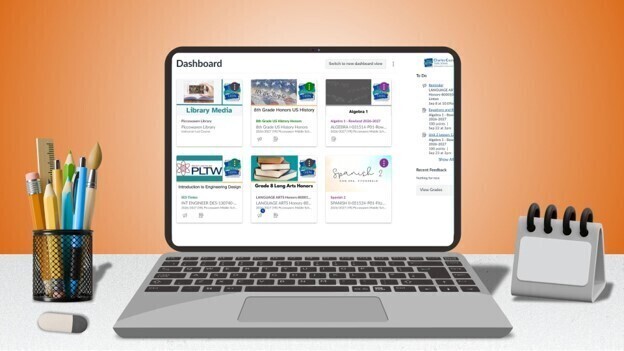
Canvas is the CCPS learning management system used by teachers to share course materials, announcements, assignments, assessments and feedback.
View instructions for accessing Microsoft 365, Clever and Canvas
Family tip: Your child’s teacher will provide directions about which digital tools to use based on the curriculum, the learning activity and appropriate screen time. If your child is unsure where to begin or cannot find a resource, encourage them to contact their teacher for support.
2. Find Courses and Assignments in Canvas
Canvas gives students one place to access course content and learning activities. Depending on the course and grade level, students may use Canvas to:
· Read announcements from their teachers.
· View course materials and upcoming topics.
· Complete assignments and quizzes.
· Review teacher feedback.
· Keep track of upcoming work.
View parent support and instructions for accessing Canvas
Family tip: Canvas is a classroom learning digital tool option. Remember that official grades and attendance are found in StudentVUE and ParentVUE.
3. Stay Informed with ParentVUE and StudentVUE
ParentVUE and StudentVUE provide access to official student information, including:
· Grades.
· Attendance.
· Class schedules.
· Student records.
· Messages from teachers.
Students use StudentVUE, while parents and guardians use ParentVUE.
For ParentVUE support, email parentvue@ccboe.com.
4. Use Technology Safely and Responsibly
Help your child build safe and healthy technology habits.
· Never share a password or verification code—even with a friend.
· Think carefully before sharing personal information online.
· Communicate respectfully in digital spaces.
· Follow CCPS expectations for school-issued devices and personal devices.
· Talk with a trusted adult when something online feels unsafe, confusing or inappropriate.
Families can also explore CCPS guidance about artificial intelligence, digital parenting, accessibility tools, internet use, cell phones, BYOD and school-issued devices.
Explore Technology Guides for Students and Parents
5. Get Technology Help
The AskCCPS Help Desk is available online to request assistance with a CCPS student device. A parent or guardian’s personal email address must be used to submit a student’s technology support ticket.
Submit an AskCCPS Help Desk ticket
When requesting help, include:
· The student’s name and school.
· The type of device or system involved.
· A brief description of the problem.
· Any error message displayed.
· A screenshot, if available and appropriate.
Family tip: For questions about assignments, feedback or digital resources for a particular course, contact your child’s teacher first.
We look forward to partnering with CCPS students and families for a safe, connected and successful school year
CCPS Office of Technology
Get quick technology tips, Canvas updates, cybersecurity reminders and other helpful resources by following @ccpstechnology on Instagram.